



Your Cart is Empty
A clearer way to use this tool
Choose an INVIGOR8 flavor, set the number of labeled servings, and add your liquid and extras. The totals update as you make changes. You can save one recipe as a comparison, build another, and see the difference without treating either recipe as automatically good or bad.
Build the Shake You Actually Drink
Start with the powder and portion. Then add the liquid you normally use and the extras you enjoy. Include ingredients even when they seem small. A spoonful, a splash, and a handful can mean different amounts in different kitchens.
The builder shows calories, protein, total carbohydrate, fat, and fiber. Each ingredient has its own contribution in the recipe ledger. You can inspect the numbers instead of receiving a total that hides where the nutrition came from.
For a useful comparison, enter realistic amounts. A carefully minimized recipe may look tidy but offer little help if you never make it that way. The goal is a clearer understanding of your ordinary shake and the changes you are actually considering.
Why Flavor Changes the Starting Numbers
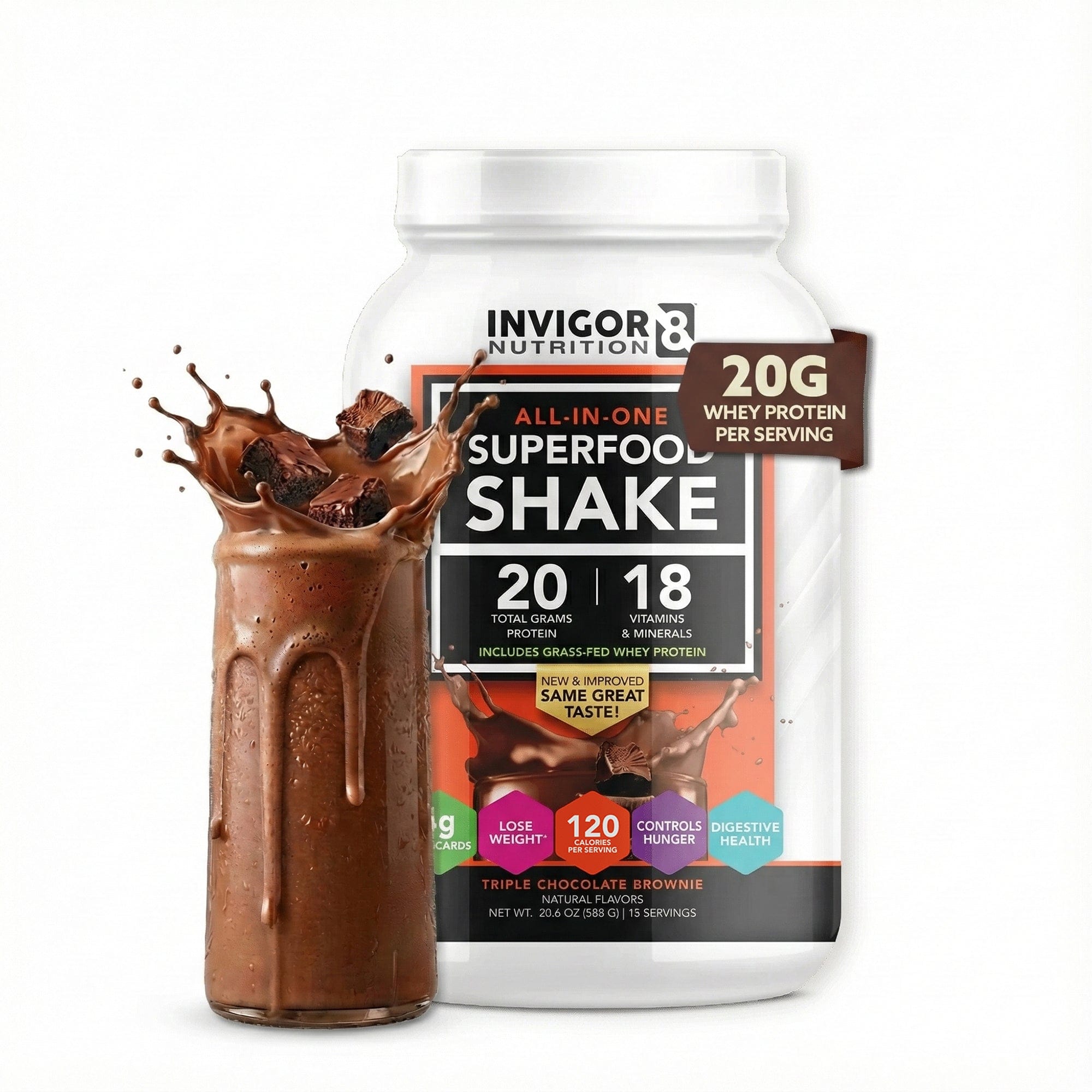
The reviewed INVIGOR8 labels list different nutrition information by flavor. A labeled two-scoop serving of Chocolate Brownie contains 120 calories, French Vanilla 100, Natural Strawberry 110, and Salted Caramel 100. Each lists 20 grams of protein, while the other amounts and dry serving weights vary. [1]
Selecting a flavor loads its own values rather than applying the chocolate panel to every product. The matching nutrition label is available beside the recipe so you can check the source. If your package differs, use the custom powder entry instead.
A flavor difference does not establish which product is best for you. Taste, dietary suitability, and the role of the drink matter too. The builder simply ensures that the starting arithmetic reflects the selected label rather than a general marketing headline.
Keep Scoops and Servings Separate
A serving is the quantity defined on the label. A scoop is a measuring utensil. For the INVIGOR8 labels used here, one serving contains two scoops. If you use one scoop, select half a serving so the contribution is scaled correctly.
For example, half a labeled serving of a 120-calorie powder contributes 60 labeled calories and half of the listed protein, carbohydrate, fat, and fiber. Adding a liquid afterward changes the recipe total again. This is proportional arithmetic, not a recommendation to use a particular portion.
Use the directions and label on your actual product. Scoop measurements can be less exact than weighing a portion, particularly when a scoop is heaped or packed. The builder does not know the weight of an unmeasured spoonful and should not suggest otherwise.
Compare Liquids on the Same Basis
Water contributes no calories or macros. Milk and nondairy drinks contribute their own nutrition, which depends on the product and amount. A plain unsweetened drink and a sweetened version can have different panels even when their names look similar.
The presets provide approximate example values for common portions. They are useful for exploring a recipe, but your own carton is the better source for a precise product comparison. Choose the custom liquid option to enter that label instead.
Check the portion basis when switching liquids. Comparing one cup of one drink with half a cup of another changes both the ingredient and the quantity. That may be your intended recipe, but it is different from asking what happens when the same volume is replaced.
Add Smoothie Extras Without Losing Track
Fruit, oats, yogurt, and nut butter can make a shake more substantial or change its flavor and texture. Enter the extras you actually use, with their amounts visible. The recipe ledger helps you see how each addition contributes to the final total.
You can remove an ingredient and add it again without rebuilding the whole drink. This makes the builder useful for ordinary recipe decisions: whether to include oats, how a different yogurt changes protein, or what happens when you use a smaller fruit portion.
An addition is not automatically a problem because it increases calories. A larger recipe may be appropriate for one purpose and unnecessary for another. The tool describes the change; you decide how it fits your routine, with professional guidance when needed.
Use Custom Labels When Brands Differ
Generic food data cannot capture every packaged product. Two yogurts with similar names may differ in serving size and composition. A nut butter with added ingredients may not match the example preset. The custom ingredient option lets you replace assumptions with the label you have.
Enter a clear name, the nutrition amounts per labeled serving, and the number of those servings in your recipe. The builder multiplies the values and adds them to the total. Keep the serving description in the name if it will help you recognize it later.
If a value is not listed or you do not know it, do not invent it. The custom fields require the values needed for the displayed totals; if you cannot complete them, keep your recipe estimate clearly qualified. A missing food should not disappear from your own interpretation of the result.
Understand Why Label Calories May Not Match a Simple Formula
Food labels round values and can use specific calculation methods. Multiplying the displayed protein and carbohydrate grams by four and fat grams by nine may not reproduce the listed calories exactly, particularly when fiber and rounding are involved. Use the label's calorie amount for a labeled ingredient. [2]
The builder adds each ingredient's stated or preset calories directly rather than silently replacing them with a different energy calculation. Macros remain separate fields. This keeps the output traceable to the source values you chose.
Small differences between rounded figures should not become a reason to mistrust your entire meal plan. Check portion definitions and sources first. If exact tracking is medically important, ask a qualified professional how to handle label rounding and recipe estimates.
Compare Two Recipes With One Change
Build your usual recipe, then save it as the comparison. Adjust a single ingredient and look at the new totals beside the saved version. You can see the difference in calories and protein without trying to remember the earlier numbers.
For example, compare your original liquid with another liquid while keeping powder and extras unchanged. Or keep the liquid constant and compare half a serving of powder with a full serving. Changing one thing makes it easier to describe what happened.
The comparison does not rank the recipes. A lower-calorie drink is not universally more useful, and a higher-protein one is not automatically necessary. Keep the purpose in view: snack, meal component, or another role defined by your own circumstances.
Give the Finished Drink a Practical Job
Before interpreting the totals, decide where the recipe fits. Are you adding a convenient snack, making breakfast easier, or creating a smoothie alongside food? Those purposes can lead to different recipe choices even when the same powder is involved.
A protein number alone does not establish that a drink replaces the full nutrition of a meal. Look at the broader recipe and the rest of your day. If you are following a medically directed diet or dealing with poor food intake, discuss suitable options with a professional.
INVIGOR8 can fit as a convenient powder option when its ingredients and preparation suit you. Use the builder to make that role specific. You should be able to explain what the product contributes and why you chose the way you prepare it.
Save a Recipe You Can Recreate
Print the ingredient ledger when you have a recipe you want to repeat. It includes the selected flavor, labeled serving fraction, liquid, add-ins, and calculated totals. Keep the source note so you remember which values were product labels and which were estimates.
If you change brands or portions later, update the recipe instead of assuming the old result still applies. A saved recipe is a snapshot of particular ingredients, not permanent nutrition information for every drink with the same name.
The most useful recipe is one you can make comfortably and enjoy. Start with your actual ingredients, make a comparison if it helps, and keep the result in proportion. The builder is here to remove guesswork from a practical decision, not to turn your smoothie into a test.
A few more answers
Frequently asked questions
How many calories are in a protein shake?
It depends on the powder, portion, liquid, and additions. Use the builder to add those contributions rather than relying on a single number for every shake. The selected INVIGOR8 label is the powder starting point, and the rest of the recipe is counted separately.
Does the builder include milk calories?
Yes, when you select a milk preset or enter a custom liquid label. Choose the amount you actually use. If water is selected, the liquid contributes no calories or macros. Different cartons can vary, so custom values are available for a closer comparison.
Are the food presets exact?
They are approximate reference examples for the displayed portions. Brands, preparation, and portion measurement can change the values. Replace a preset with your own label when accuracy matters. The recipe source note identifies that generic presets are estimates rather than laboratory measurements of your drink.
Can I use a different protein powder?
Yes. Choose custom powder and enter its serving weight and nutrition amounts. Check the label's serving definition before selecting your portion. The tool can calculate compatible inputs without claiming that another product has INVIGOR8's formula or ingredient profile.
Does a larger shake make a better meal replacement?
Not automatically. More calories or protein do not establish that the drink provides the broader nutrition you need. Consider the intended use and your full diet. A clinician or dietitian can help with individualized meal replacement questions or medically directed nutrition plans.
Why does the calorie total differ from four times my macros?
The builder adds the listed calories directly. Food labels round numbers and may account for ingredients in ways a simple calculation does not reproduce. Check the portions and source values before assuming a discrepancy means the recipe is wrong.
Can I print my recipe without signing up?
Yes. The print action creates a readable recipe summary with ingredients and totals. No email or purchase is required. Keep the source note with the recipe so future changes in products or portions do not get mistaken for the original calculation.
Sources and reference notes
[1] INVIGOR8 flavor nutrition labels ↗[2] FDA guide to nutrition labels ↗Product label images reviewed October 20, 2026. Generic food and recipe presets are illustrative, editable estimates. Check current package information and official travel rules. No personal health information is saved by these tools.
For educational planning only. Consult a qualified healthcare professional for individualized nutrition needs. The tools do not diagnose, treat, cure, or prevent disease. These statements have not been evaluated by the Food and Drug Administration.